VPN on a Keenetic router
The Ben's VPN app goes right onto your Keenetic router. Once it’s signed in, all your home devices run through Ben's VPN, the TV too, without apps of their own. Below are ten steps, one action each.
Before that, check your model and install OPKG, see steps 1 and 2
- Models
- a list of 29 codes, Keenetic and Netcraze
- Requires
- KeeneticOS or Netcraze firmware 5.0 or later, plus the OPKG component
- Install
- one command in the router’s command line
- Router page
- bensvpn.home
:8790 or 192.168.1.1:8790
Installing, step by step
You’ll need a computer or phone connected to this router and access to your account. On the pictures, what to press or find is framed.
-
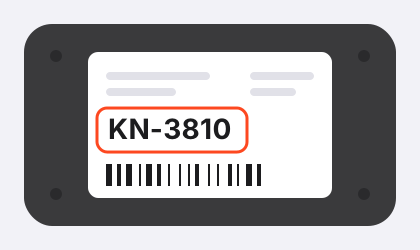
Find the model code on the router’s sticker
The sticker is usually on the bottom of the router. The code is the letters KN or NC and four digits. NC marks Netcraze routers, which is what Keenetic is called now.
What you’ll seeA code like KN-3810. Check its digits against the list below, not the name.
Supported codes
- KN-1010
- KN-1011
- KN-1012
- KN-1810
- KN-1811
- KN-1812
- KN-1912
- KN-1913
- KN-2311
- KN-2312
- KN-2610
- KN-2710
- KN-2910
- KN-3611
- KN-3810
- KN-3811
- KN-3812
- KN-4110
- KN-4210
- NC-1012
- NC-1013
- NC-1812
- NC-1913
- NC-2312
- NC-3611
- NC-3811
- NC-3812
- NC-4110
- NC-4210
If the code isn’t on the list, the app won’t install on this router. How to connect a router like that is on the Other routers tab of your account.
-
Install the OPKG component on your Keenetic
Open my.keenetic.net or 192.168.1.1 in a browser. The router asks for the admin login and password, the ones chosen when the Keenetic was first set up. You’ll need them again later.
In the menu, open General system settings and click Component options. Tick Open Package support, that’s OPKG, and click Install update below the list.
What you’ll seeThe router downloads the component and restarts by itself. Wait until the web interface opens again.
You need KeeneticOS or Netcraze firmware 5.0 or later, as both use the same numbering. How to check the version is explained in the questions further down.
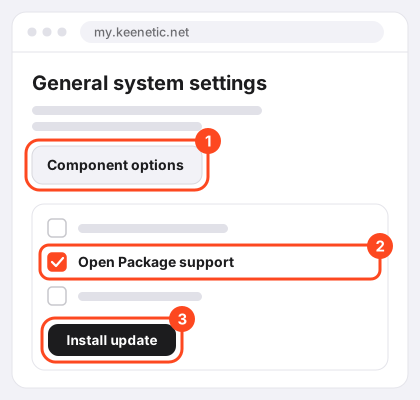
The numbers show the order of clicks. -
Copy the install command
There’s one command for every model on the list. The router tells the server its model by itself and gets the right installer, so there’s nothing to choose.
What you’ll seeAfter you press Copy, “Command copied” shows up under the line.
Your account has the same command, on the Keenetic tab in the Router section. The app goes to the router’s internal memory, and if there isn’t enough room, the installer moves it to a plugged-in USB drive formatted as ext4 by itself.
-
Paste the command into the Keenetic command line and press Enter
Open my.keenetic.net/a or 192.168.1.1/a. If the router asks for the login and password again, enter the same ones. Paste the command into the field and press Enter.
What you’ll seeAlmost nothing, and that’s fine. The installation shows up in the system log.
If the installation failed and you’re doing this step again, first run this command in the same command line.
no opkg diskThe router answers
Disk is unset. Now copy the install command from step 3 again, paste it and press Enter. Withoutno opkg diskthe repeat does nothing, and the router only writesDisk is unchangedto the log. You’ll see the same line if you press Enter twice during a good installation, and then there’s nothing to do.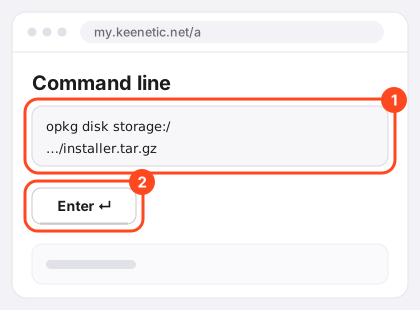
The numbers show the order of steps. -
Open the Keenetic System log and wait
It’s in the menu of the same web interface, my.keenetic.net. Installation usually needs a couple of minutes, sometimes up to 10, and the router writes what it’s doing to the log as it goes.
What you’ll seeInstallation lines numbered from [1/8] to [8/8]. The last one starts with
[8/8] Doneand has the router page address, http://bensvpn.home:8790/ (http://192.168.1.1:8790/). It means the app is in. If it takes long to appear, reload the log page.Keenetic’s own messages in the log are always in English. If one of them says
response code 404 (Not Found)and there are no numbered lines, the server didn’t recognise the router’s model. Check the code against the list in step 1 and read the question “My model isn’t supported” further down. For any other download error, see the question about it there too.If the log has
Disk is unchangedand no new numbered lines, the router skipped the command because it remembers the earlier attempt. Start step 4 over withno opkg disk. If numbered lines are coming in or[8/8] Doneis already there, do nothing.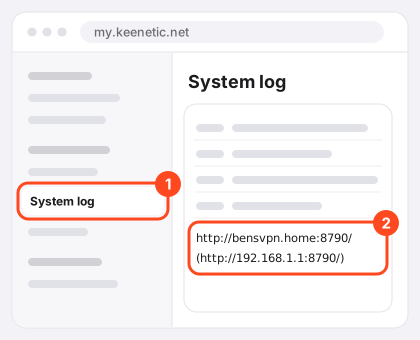
The numbers show where to look. -
Open the router page and log in as the Keenetic admin
Open the address from the log, bensvpn.home:8790, on a device connected to this router. If the name doesn’t work, click http://192.168.1.1:8790/. The login and password are the ones you use for the Keenetic web interface.
What you’ll seeThe Status tab saying “Not signed in”. That’s expected, the router doesn’t know your account yet.
-
Press “Sign in with code” on the router page
The button sits under the cards on the Status tab.
What you’ll seeThe Account tab with a “One-time code” field at the bottom.
-
Press “Get code” in your account
Go to the Keenetic tab in your account’s Router section. The button is in the “Signing the router in” card. The site may ask you to prove you’re not a robot first.
What you’ll seeA “Router code” window with eight digits. The code works for 3 minutes.
If you see a red note instead of the button, your account has no e-mail. Sign in with e-mail instead and press the button again.
-
Type these digits into the “One-time code” field
It’s at the very bottom of the Account tab on the router page. Leave the mirror block above it alone, it’s only for when the router can’t reach the service.
What you’ll seeAfter the eighth digit the page checks the code by itself, there’s nothing to press. Within a few seconds the Status tab says “Connected”.
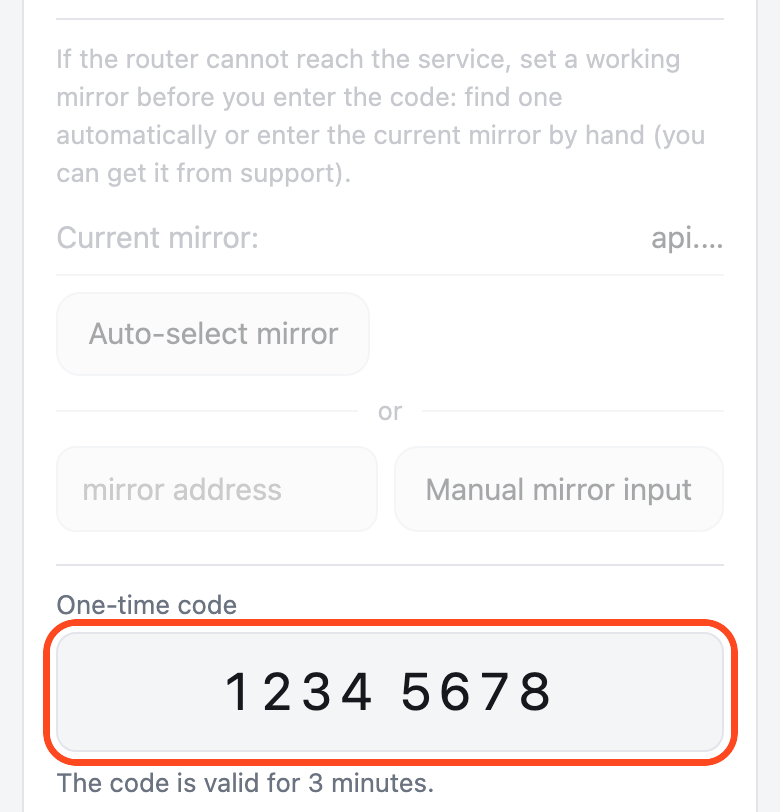
The mirror block is dimmed on the screenshot. -
Pick devices if you need to
From now on everything on your home network uses Ben's VPN, new devices too. On the Devices tab you can leave individual devices out, or let only the ones you choose go through it.
What you’ll seeA tick saves by itself, there’s no Save button. A device may need up to a minute to switch over.
If Ben's VPN stops working (a failure, a reboot, an update), your whole home network stays offline until it’s back. A pause or signing out lets the network go online directly.
How to remove it
On the router page, open the More tab and press “Remove…”. The page asks for the Keenetic admin’s login and password once more, enter them and press “Remove”. More is the last tab, and on a phone the row of tabs scrolls sideways.
After removal your devices go online directly. Don’t turn off OPKG or unplug the drive instead of removing the app, or your home network will lose the internet.
What else is on the router page
- Devices
- all home devices or only the chosen ones
- Location
- any location on your account
- Exclusions
- the Russia preset, your own domains and IP addresses, or both
- Updates
- arrive and install without you
Common questions
The router page won’t open
It only opens from this router’s home network. The name bensvpn.home:8790 won’t work on a device with its own DNS, such as Private DNS on Android. Then type http://192.168.1.1:8790/ or your router’s other address with the same port. If that doesn’t work either, check the Keenetic system log to see whether the installation got to the line with the address.
The code didn’t work or expired
A code works for 3 minutes, and each one only once. Press “Get code” in your account again and type the new digits on the router page right away.
Why isn’t Ben's VPN listed under “VPN” in the Keenetic web interface?
That section only shows connections the router’s own firmware creates, such as OpenVPN, L2TP or IPsec. The app runs through the OPKG component, and its BensVPN connection appears on the main page of the web interface and in Connection priorities, in the app’s profile. You manage it on the router page, bensvpn.home:8790 or http://192.168.1.1:8790/.
My model isn’t supported
The server won’t give an installer to a router that isn’t on the model list. The command runs, but the installation doesn’t start. The system log shows response code 404 (Not Found) and no installation lines. Check the code again. If you can’t see the sticker, the show version command in the router’s command line shows the code in the hw_id line. If the code isn’t on the list, connect the router without the app as described under the model list. If the code is on the list, see the question about a download error in the log.
My KeeneticOS or Netcraze firmware is older than 5.0
The show version command in the router’s command line shows the version in the title line. If it’s below 5.0, the installation won’t go ahead, and the system log will say why. Update the firmware through the router’s web interface. Then run no opkg disk in the command line, copy the install command from step 3 again and paste it.
Do I need a USB drive?
Not necessarily. The installer puts the app in the router’s internal memory first, and if that runs short, it moves the app to a plugged-in flash drive or disk formatted as ext4. With no drive, the installation stops, and the system log says how much space is needed. Then plug in a drive and run no opkg disk. After that, copy the install command again and paste it.
The command line shows an error
Check that the component from step 2 is installed and that the router restarted afterwards. Then run no opkg disk, copy the install command again in full and paste it.
The log shows a download error
It means the router couldn’t download the installer. That happens when the router’s code isn’t on the model list, and then the log has the line response code 404 (Not Found). If the code is there, check that the internet works on the router. Then run no opkg disk, copy the install command again and paste it. If the error keeps coming back, contact support.
I don’t remember the Keenetic admin password
Whoever first set up the router chose it. If nobody remembers it, the router’s manual or Keenetic support can help you get back in.